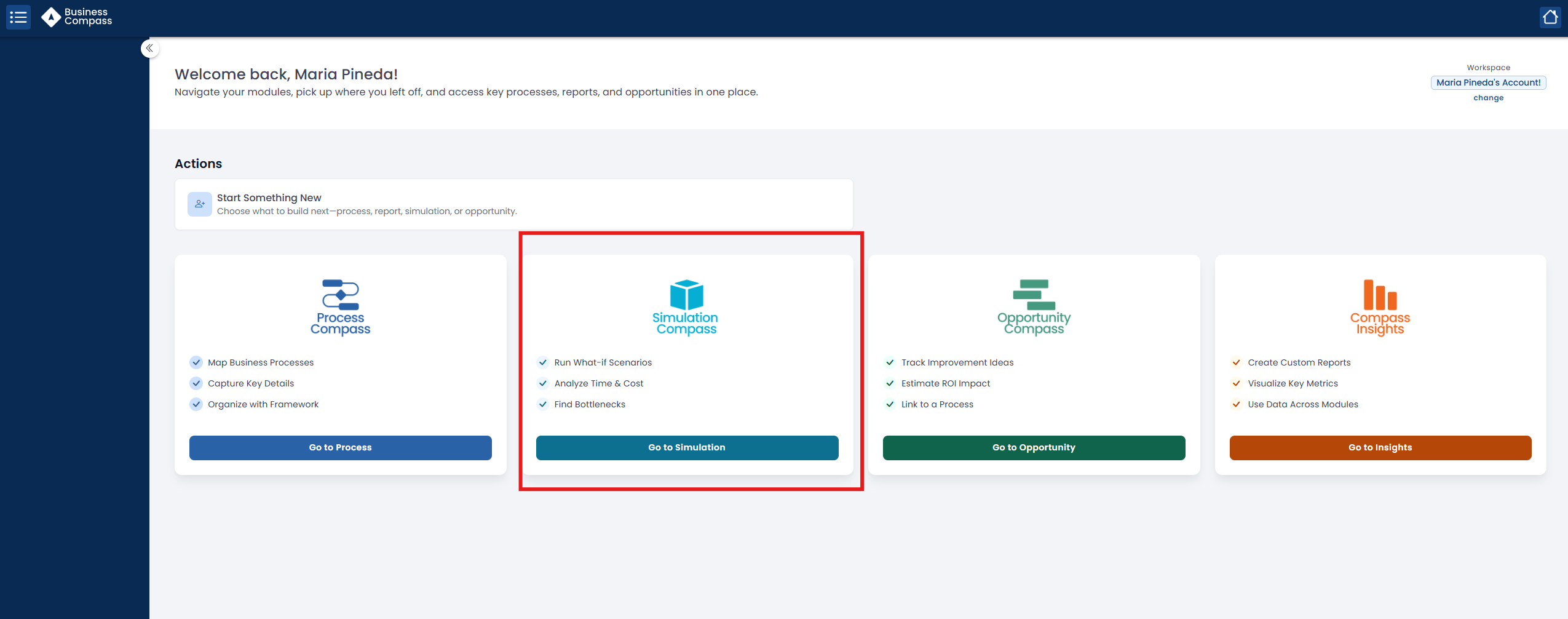
The simulation module empowers you to optimize your processes through realistic scenario modeling. By creating simulations based on your actual workflow data, you can:
Evaluate process efficiency across multiple dimensions.
Point bottlenecks and resource constraints.
Make data-driven decisions for workflow optimization.
Use the simulation results to guide process improvements, resource allocation decisions, and strategic planning efforts across your organization.
Simulation module
2. Getting started
Access the Simulation Dashboard.
Click the "+ Start Simulation" button.
Select the process you wish to analyze (required).
Configure your parameters based on your objective.
Note: All simulations must be linked to an existing process to execute.
3. Understanding User Permissions
3.1 Identify Your User Role
Check your assigned role in the system (editor or viewer).
If you're unsure, contact your system administrator.
3.2 Editor Role
Create new simulation scenarios.
Edit existing simulations.
Delete simulations.
Run and compare different simulation scenarios
3.3 Viewer Role – Limited Access
Access and review simulation results.
View comparisons created by editors.
However, they cannot:
Create new simulations.
Delete existing simulations.
Edit or modify simulations in any way.
This role is ideal for stakeholders or team members who only need to review outcomes.
4. Key Concepts
Process Instance: One complete run of a workflow.
Virtual Worker: Simulated resource with real-world limits.
Queue Time: Delay before a task starts.
Work Time: Time actively spent on a task.
Cycle Time: Total duration (Queue + Work).
Cost: Labor + fixed activity costs.
5. Simulation Files
Access and manage saved simulations under Simulation Files. Use features like:
Column visibility and global search.
Export to Excel or CSV
Actions to delete or manage files.
6. Configurable Inputs
Simulations rely on setting these accurately:
Activities: Duration, cost, automation/manual.
Gateways: Probability paths (must add to 100%).
Resources: Team size, hourly rates, and schedules.
Process Parameters: Start date, run mode (by time or # of cases), volume, and instance arrival patterns.
7. Drafts & Scenarios
Each simulation runs on a draft copy of your process.
Create and edit multiple custom scenarios.
Compare up to 2 scenarios side-by-side.
8. Simulation Results
Results include:
Throughput
Resource utilization
Queue/work/cycle times
Cost analysis
Use these insights to optimize your process before deploying real change
Stop Guessing. Start Knowing.
Every day you wait is another day that six-figure savings stay hidden in your processes. Take the first step.